Currency
Currency settings allow you to set a localized currency for your store, which is especially useful if your store operates across multiple countries. Follow the steps below to configure a localized currency.
-
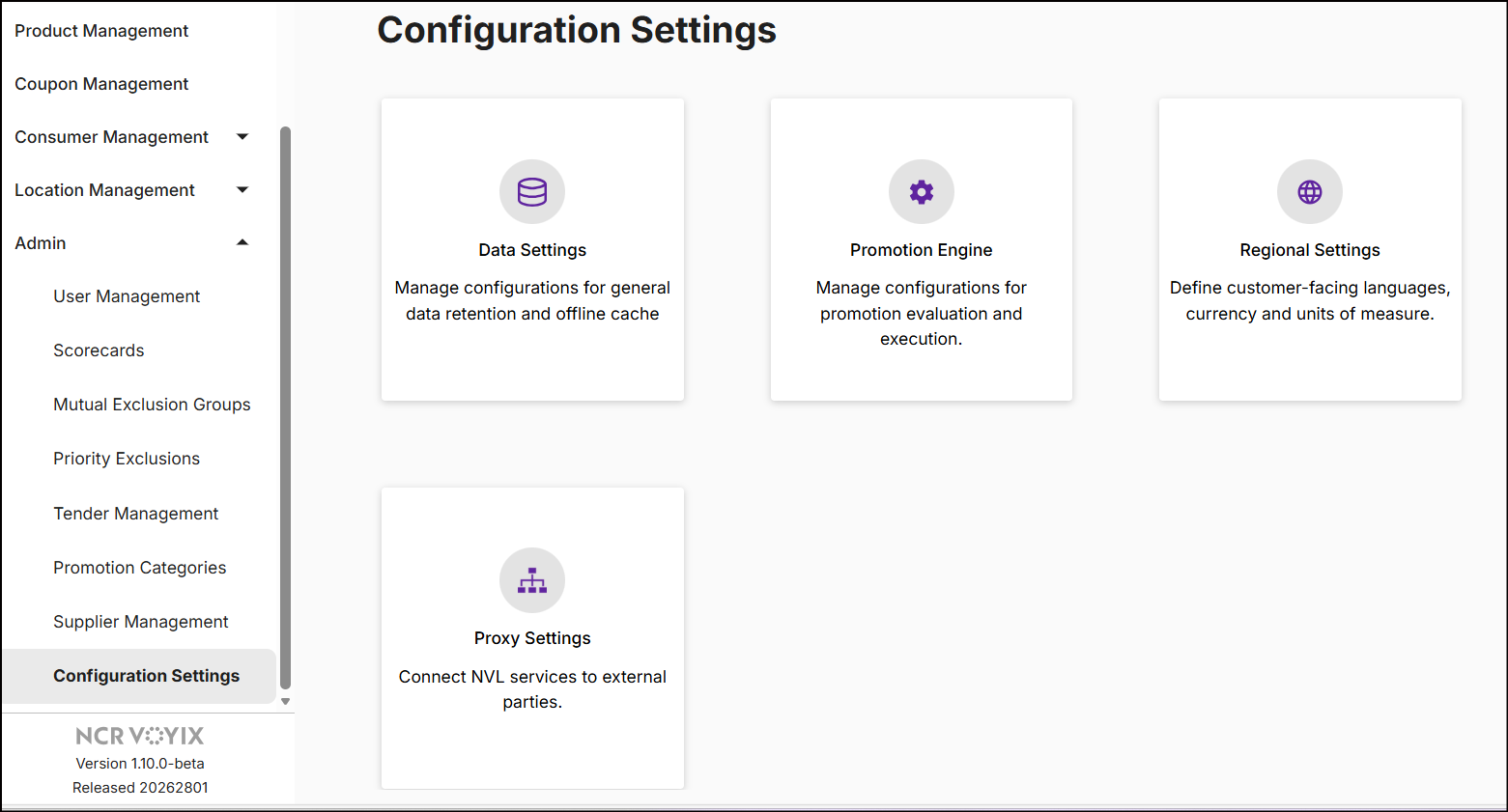
On the left navigation panel, expand Admin and click Configuration Settings. The following screen will appear:
-
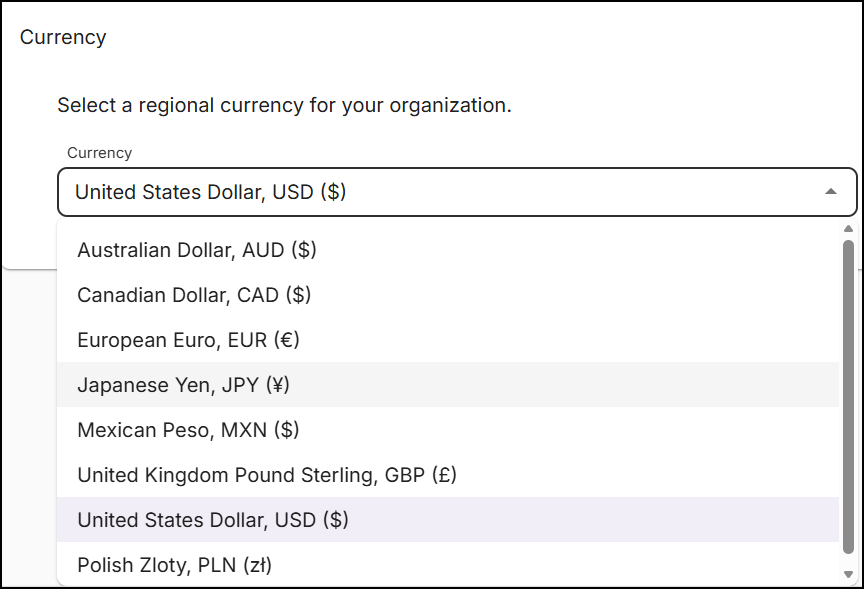
Click Regional Settings to see the Currency dropdown. By default, the currency is set to United States Dollar, USD ($).
-
Click the Currency dropdown to see the list of currencies supported by NVL.
-
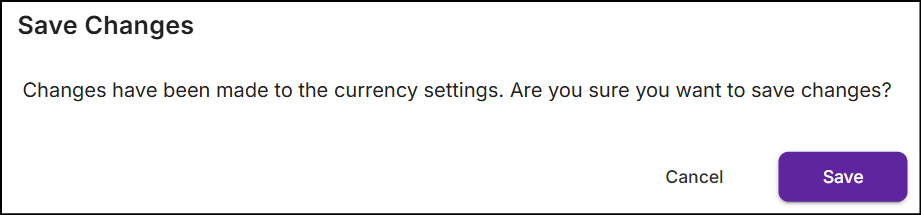
Select the currency and click Save Changes. A confirmation popup will appear to verify the currency change for your organization.
-
Click Save. A message 'Successfully saved regional settings.' is displayed.
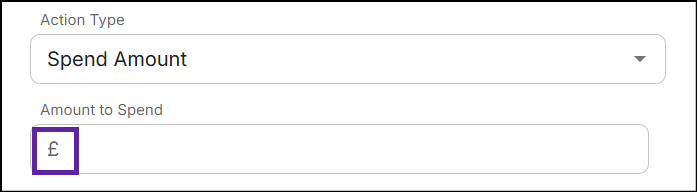
After you update the currency, it will reflect across all pricing-related fields in the NVL UI and POS. The currency symbol will automatically update to match your selection.
Here's an example of how the currency symbol appears in the 'Spend Amount' action: